
Summary
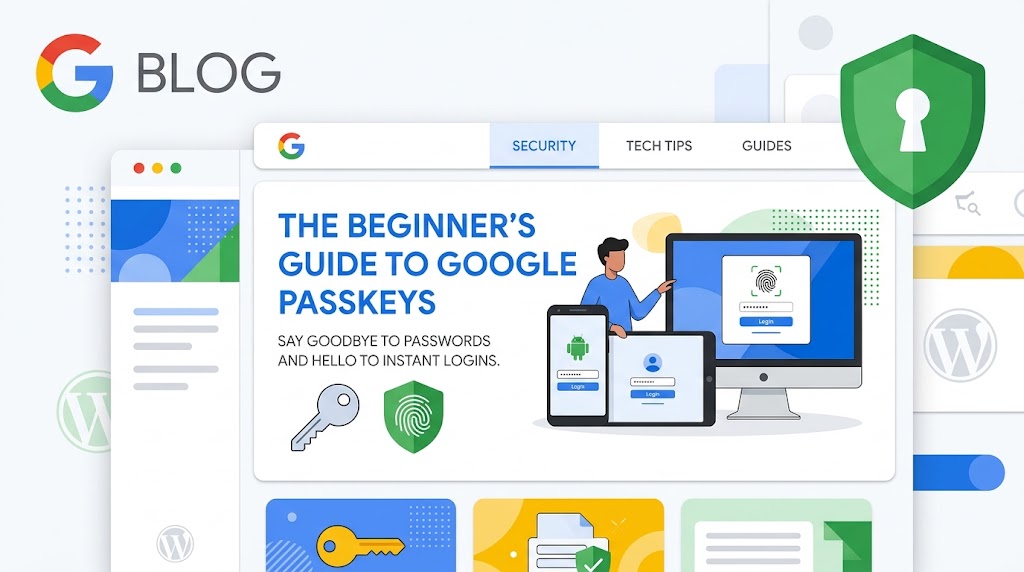
Passkeys are supposed to make logging in easier, but let’s be honest—they can be super confusing at first. We recently navigated the setup process ourselves (including a surprise 2-day security hold!), and we’re sharing everything we learned. Here is a practical, step-by-step guide to setting up Google Passkeys on your devices without the headaches.
If you are tired of typing long passwords, forgetting login details, or digging through your phone for two-factor authentication text codes, Google Passkeys are your ticket out.
Passkeys replace traditional passwords entirely. Instead of remembering complex letter-and-number combinations, you log into your Google Account using the exact same method you use to unlock your phone or laptop: your fingerprint, Face ID, or device PIN.
Why Google is Forcing Passkeys for Business Accounts
You may have noticed Google prompting you more aggressively to create a passkey lately. This isn’t just a friendly suggestion—Google has begun mandating passkeys for high-risk tools like Google Ads, Google Ads API integrations, and Google Workspace administrative actions.
Why the Sudden Push?
- Preventing High-Dollar Hijacks: Hackers frequently target Google Ads and business accounts using phishing sites to steal passwords and SMS 2FA codes, running up massive fraudulent ad spending.
- Locking Down Sensitive Actions: Google now requires a passkey to perform high-stakes changes—such as adding new account users, changing billing details, or linking accounts.
- Phishing-Proof Protection: Unlike passwords, passkeys are physically tied to your specific device. A hacker cannot trick you into entering your passkey on a fake website because there is no password to reveal.
Setting up a passkey today ensures you won’t suddenly be locked out when managing your campaigns, updating billing info, or handling client accounts.
How Passkeys Work (Without the Technical Jargon)
Think of a passkey like a physical car key fob.
When you set up a passkey, two digital matching keys are created:
- The Public Key: Safely stored on Google’s servers.
- The Private Key: Stored securely inside your device (your phone, laptop, or hardware key).
When you log in, Google checks if your device holds the matching private key. Scanning your face or fingerprint simply proves to your device that you are the physical owner. Your biometric data never leaves your device and is never shared with Google.
Using Passkeys Across Multiple Devices
A common misconception about passkeys is that you are locked into using only the single phone or computer you used during setup. In reality, you can—and should—have passkeys accessible across all your devices.
1. Automatic Cloud Syncing (The Same Ecosystem)
If you stay within the same device family, your passkeys automatically sync in the background using end-to-end encryption.
- Android to Chrome/Chromebook: Create a passkey on your Android phone, and it automatically syncs to Google Password Manager. You can immediately log in on your desktop’s Chrome browser without touching your phone.
- iPhone to Mac: Create a passkey on your iPhone, and iCloud Keychain instantly syncs it to your MacBook and iPad.
Key Takeaway: If you lose your phone, you don’t lose your passkey. Once you log into your replacement phone with your Apple or Google account, your passkeys restore automatically.
2. Hybrid Sign-In (Cross-Platform / Mixing Ecosystems)
What if you create a passkey on your iPhone but need to log into a Windows PC at work?
You don’t need to create a whole new passkey. You can use your phone as a hardware key:
- On your Windows PC, select Sign in with a passkey.
- Select the option to Use a phone or tablet.
- A QR Code will appear on your computer screen.
- Scan the QR code using your phone’s camera.
- Confirm with Face ID or your fingerprint on your phone.
Bluetooth handles a proximity check in the background to confirm your phone and computer are in the same room, preventing remote hijacking.
Pro-Tip: Register Multiple Individual Passkeys
While cross-platform QR codes work seamlessly, scanning a QR code every single day gets repetitive.
If you regularly use both an iPhone and a Windows PC (or a shared family computer), register a second passkey directly on that secondary device:
- Log into your account on your Windows PC using Windows Hello (PIN, Fingerprint, or Face Unlock).
- Go to g.co/passkeys.
- Click Create a passkey and choose This Device.
Your Google Account can store multiple passkeys at once—one synced to your phone, one saved to your Windows PC, and even a physical USB key like a YubiKey. If one device gets damaged, your other registered devices remain active backup doors into your account.
Before You Begin
To set up a passkey smoothly, ensure:
- Your smartphone, tablet, or computer has a screen lock enabled (PIN, pattern, Face ID, or fingerprint lock).
- Bluetooth is turned on (if you plan to use your phone to verify logins on a nearby desktop computer).
- For Apple users, ensure iCloud Keychain is enabled in your device settings.
Step-by-Step Setup Guides
Method 1: The Fast 60-Second Web Setup (Recommended)
| Step | Action |
| 1 | Open your web browser and go directly to g.co/passkeys. |
| 2 | Sign into your Google Account if prompted. |
| 3 | Click the blue Create a passkey button. |
| 4 | Follow your device’s pop-up prompt (scan your fingerprint, face, or enter your device PIN). |
| 5 | Click Done. Your device is now registered! |
Method 2: Setting Up on Mobile Devices
For Android Phones & Tablets:
- Open your phone’s Settings app.
- Scroll down and tap Google > Manage your Google Account.
- Select the Security tab across the top menu.
- Under How you sign in to Google, tap Passkeys.
- Tap Create a passkey, scan your fingerprint or enter your screen lock, and tap Done.
For iPhone & iPad Users:
- Check that iCloud Keychain is active (Settings > Your Name > iCloud > Passwords & Keychain > On).
- Open Safari and navigate to g.co/passkeys.
- Log in, tap Create a passkey, and confirm using Face ID or Touch ID.
What to Expect: The 48-Hour Security Delay
If you try to set up a passkey and see a message stating your request is on a 48-hour to 7-day security hold, don’t panic—this is a built-in security safeguard, not an error.
Google enforces an automated security delay when:
- You set up a passkey from a new, shared, or unrecognized device/network.
- You manage high-stakes business assets (like Google Ads billing or Google Workspace Admin controls).
- You recently reset major security recovery options.
What this means for you: This delay gives account owners time to cancel fraudulent setup attempts if a malicious user tries to alter access settings. During this hold, you can continue using your standard login methods until the security timer clears and activates the passkey.
Frequently Asked Questions
- What happens if I lose my phone? Passkeys automatically sync to your secure cloud account (Google Password Manager on Android or iCloud Keychain on Apple). When you log into a replacement device, your passkeys restore automatically.
- Does setting up a passkey delete my old password? No. Your password remains as a secondary fallback option if you ever need to log in from an older or unrecognized browser.
- Can our entire team share one passkey? No. Passkeys are tied to individual users and personal devices. Agencies and businesses should invite employees via individual email accounts so each team member can attach their own passkey.